| Data List Screen |
 |
 |
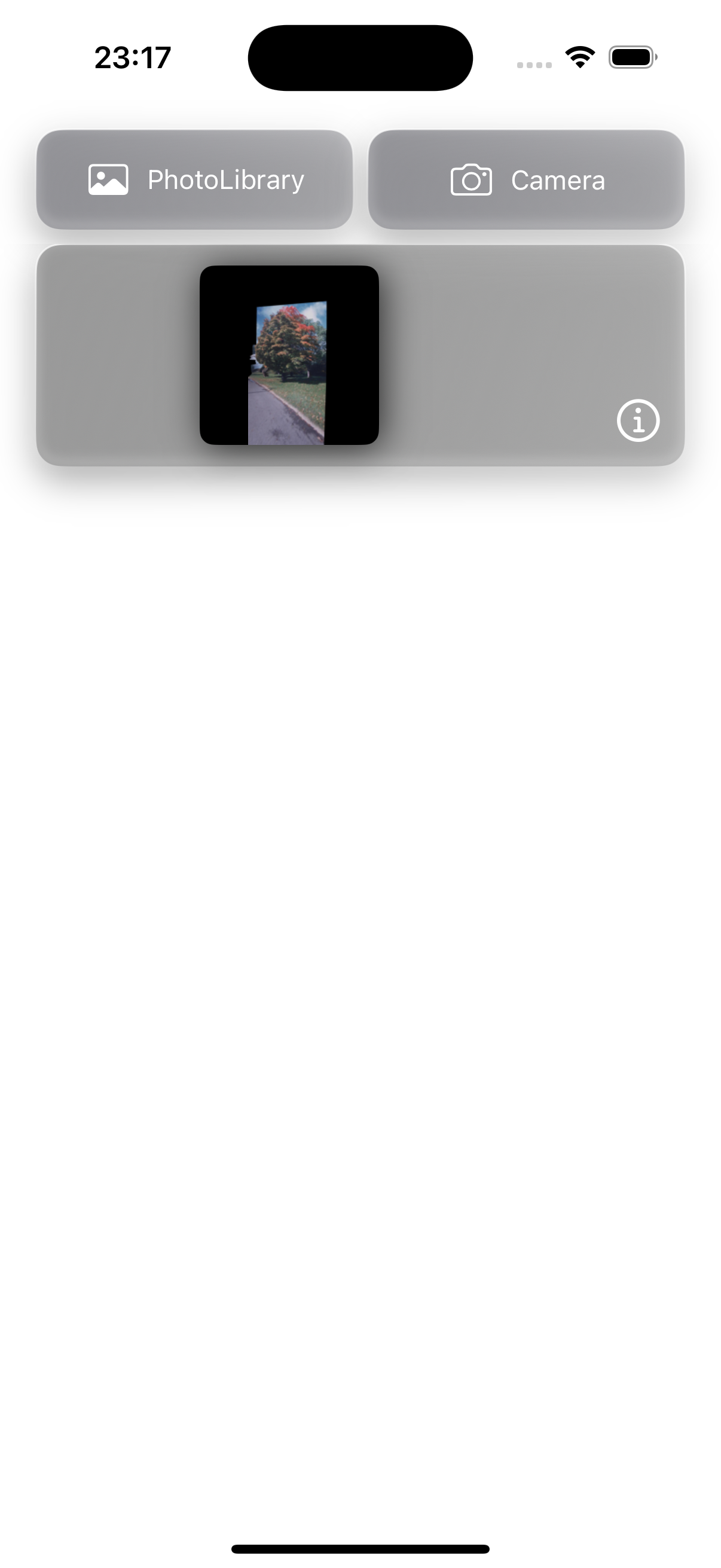
The image selected from the photo library is converted into a 3D model.
|
 |
The image captured with the camera is converted into a 3D model. |
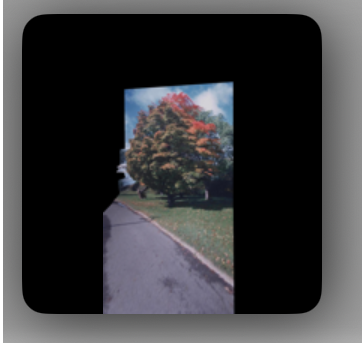 |
Data Image
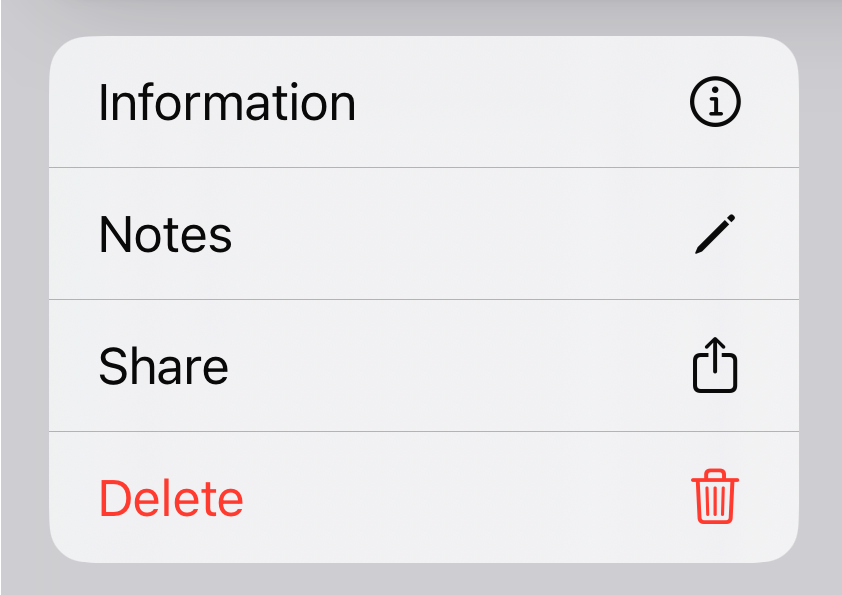
Press and hold to display the menu.
 |
 |
Displays the data information. |
 |
Add a note to the data. |
 |
Share the data. |
 |
Delete the data. |
|
|
Display data information. |
| 3D Screen |
 |
 |
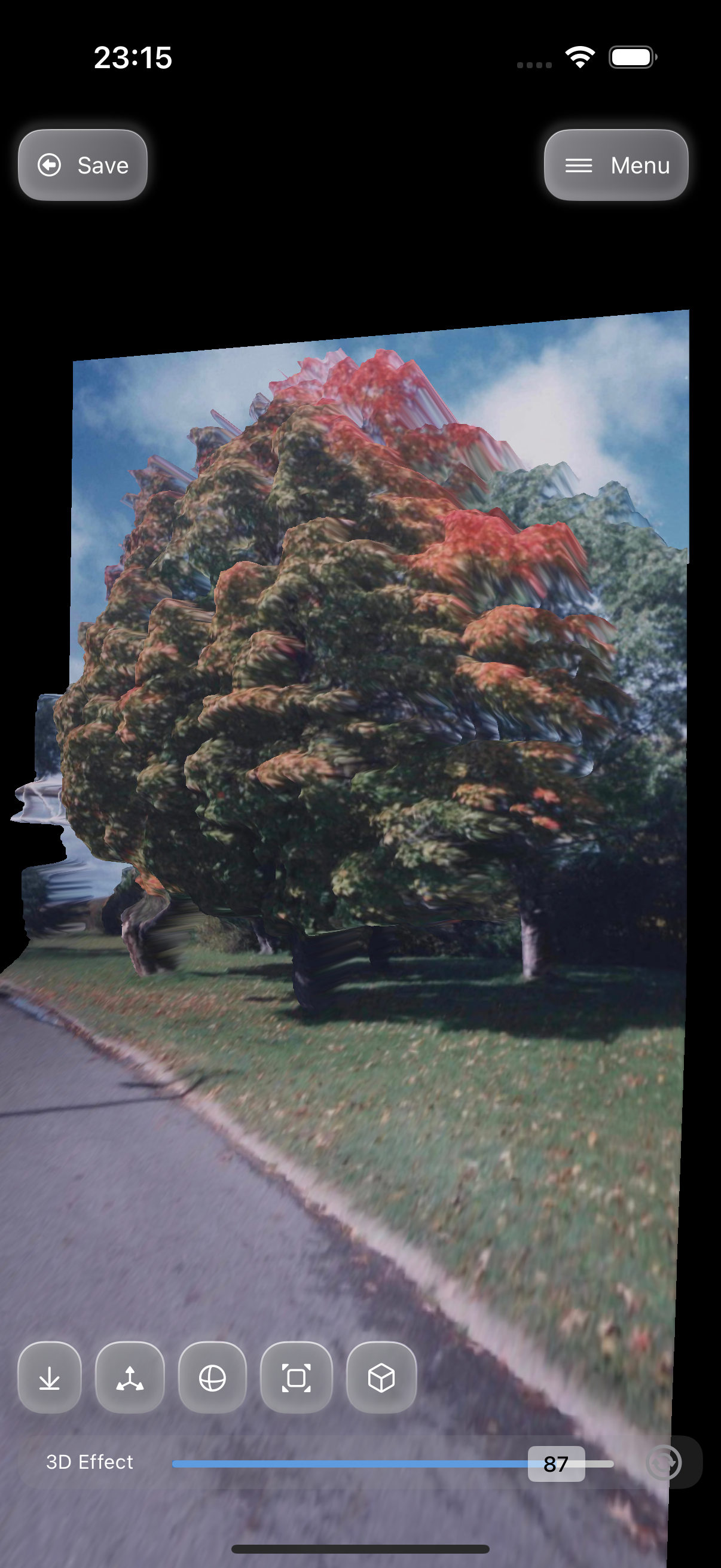
Save the data and return to the data list screen. |
 |
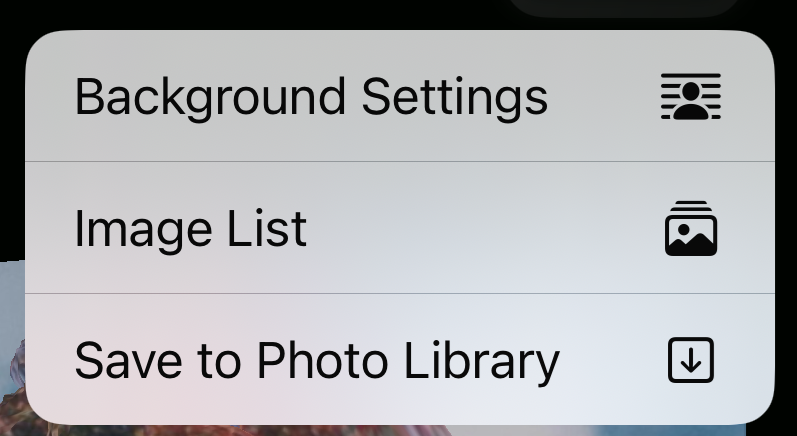
Menu
 |
 |
Set the background. |
 |
Display the image list. |
 |
Save to the photo album. |
 |
Hide the control bar. |
 |
Show the move bar, |
 |
Show the rotation bar. |
 |
Show the zoom bar. |
 |
Show the 3D effect bar. |
|
Screen Operation |
One Finger |
X-axis rotation, Y-axis rotation |
|
Two Fingers |
Move, Zoom, and Z-axis Rotation |
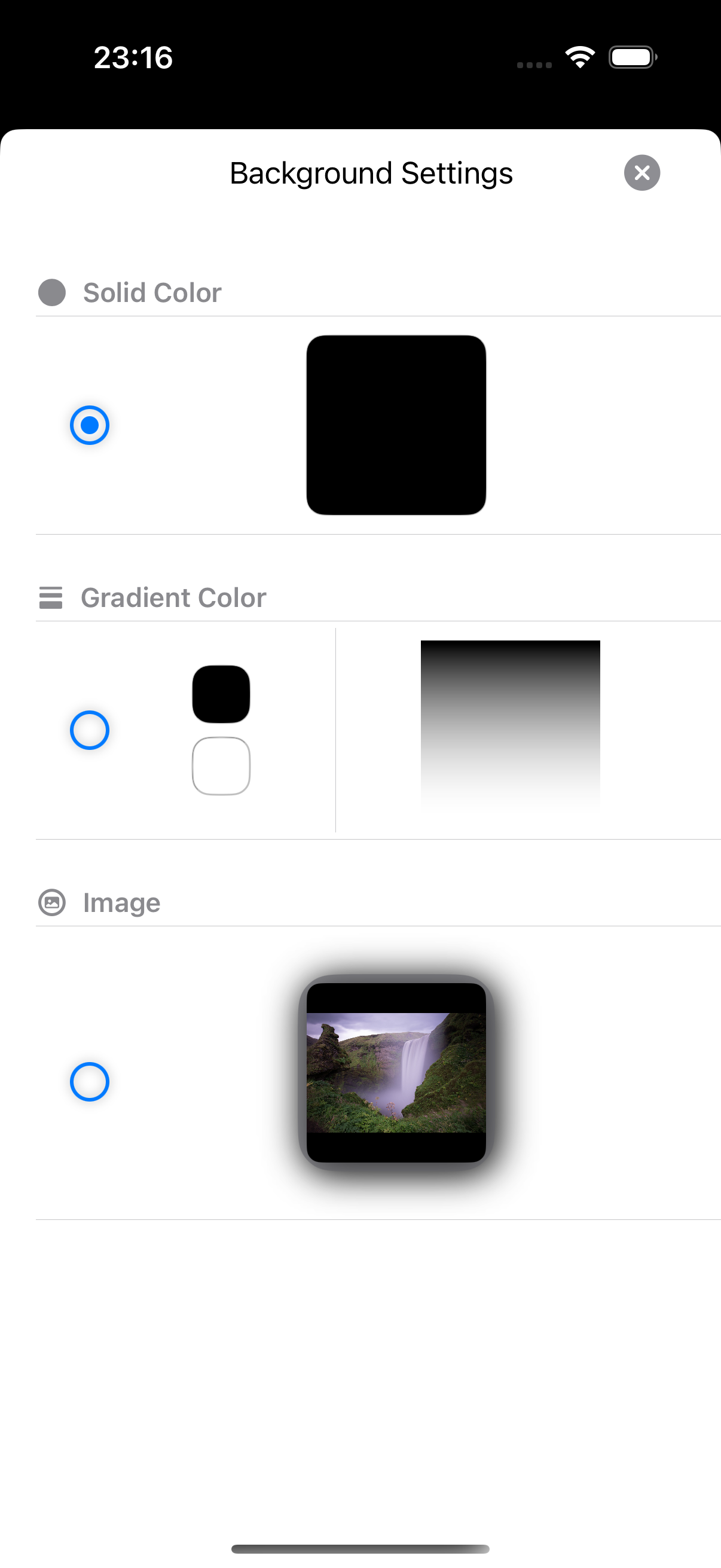
| Background Settings |
 |
 |
Set the background to a solid color.
Tap the square area to change the color. |
 |
Set the background to a gradient.
Tap the small square to change the color. |
 |
Set the background to an image.
To change the image, tap the square area. |
| Image List |
 |
 |
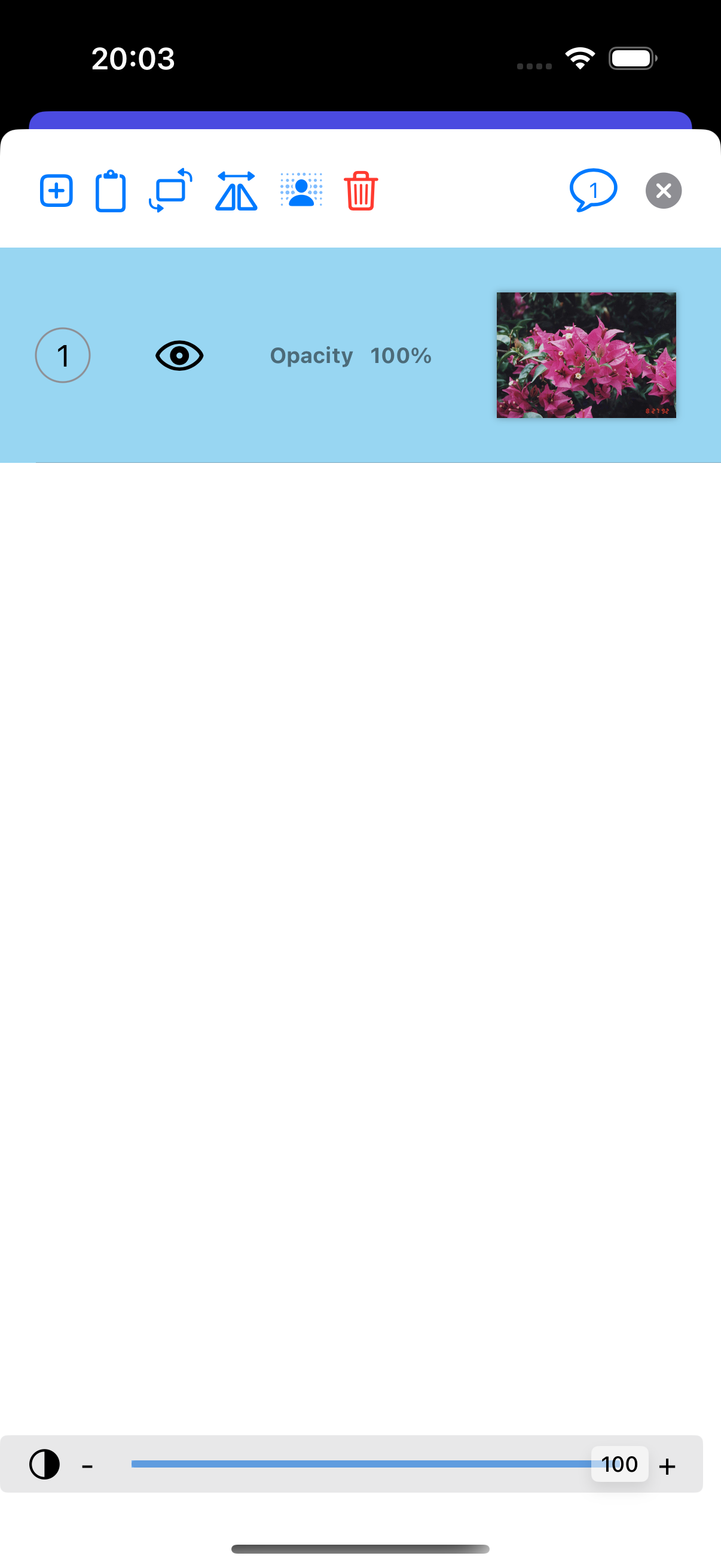
Add an image from the photo library. |
 |
Add an image from the clipboard. |
 |
Rotate the image 90 degrees. (The image will appear once selected.) |
 |
Flip the image horizontally. (The image will appear once selected.) |
 |
Remove the background from a personfs image. (The image will appear once selected.) |
|
|
Delete the image. |
 |
The number of selected images is displayed. Tap to deselect all. |
 |
The image number is displayed. |
 |
Show or hide the image. |

|
The opacity is displayed.
Adjust it using the bar at the bottom of the screen. (The image will appear once selected.)
 |
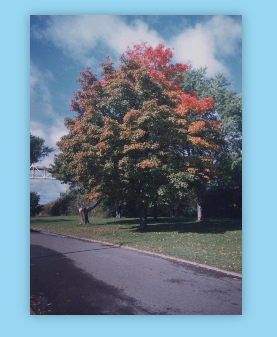 |
Image
Tap to select the image.
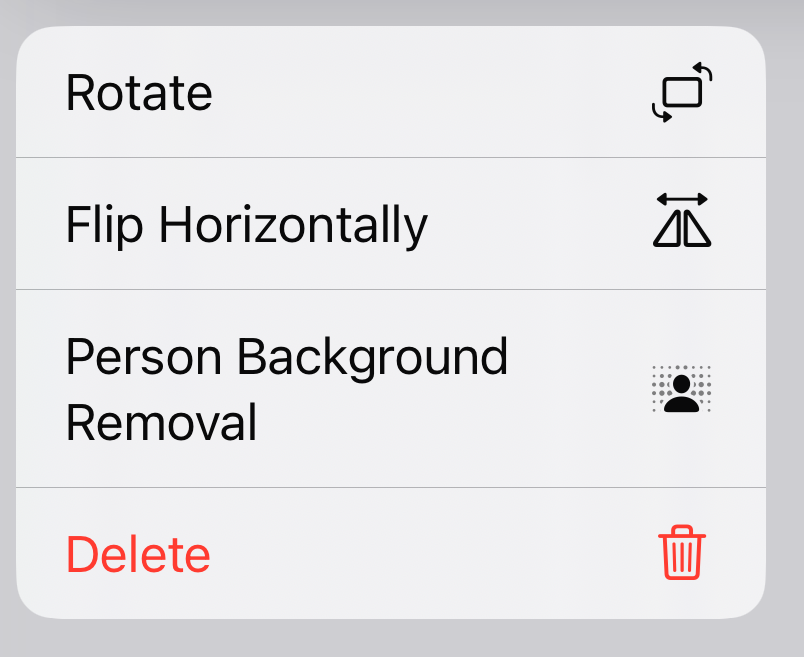
Press and hold to display the menu.
 |
|
Rotate the image 90 degrees. |
|
|
Flip the image horizontally. |
|
|
Remove the background from a personfs image. |
|
|
Delete the image. |